Estimate
Setting the tone
Most probably, your customers' first experience of your company is the quality and speed at which you produce an estimate. With the pre-approved estimates feature, you can give them an estimate within seconds. If you want to create an review the estimate yourself, you could easily turn around multiple estimates each day. Gone are the days where you might take weeks to get back to potential customers with a good estimate.
Blueprints allow you to get an early warning indicator if you can do the work the customer requests. If there's not a good fit between the customer's ask and a blueprint, then you'll know to be careful in your decision about doing the work.
Quickly capturing new work
Groundskeeper is designed so you can quickly capture new job requests from leads. You'll only need to capture the most important information for the property, and can quickly add multiple jobs. Just use the + New Property button in the toolbar to capture the details, then go to 'Add jobs' to capture the necessary jobs. No need for jumping between screens. To add work for an existing customer, use the + New Job button.
To qualify or not to qualify
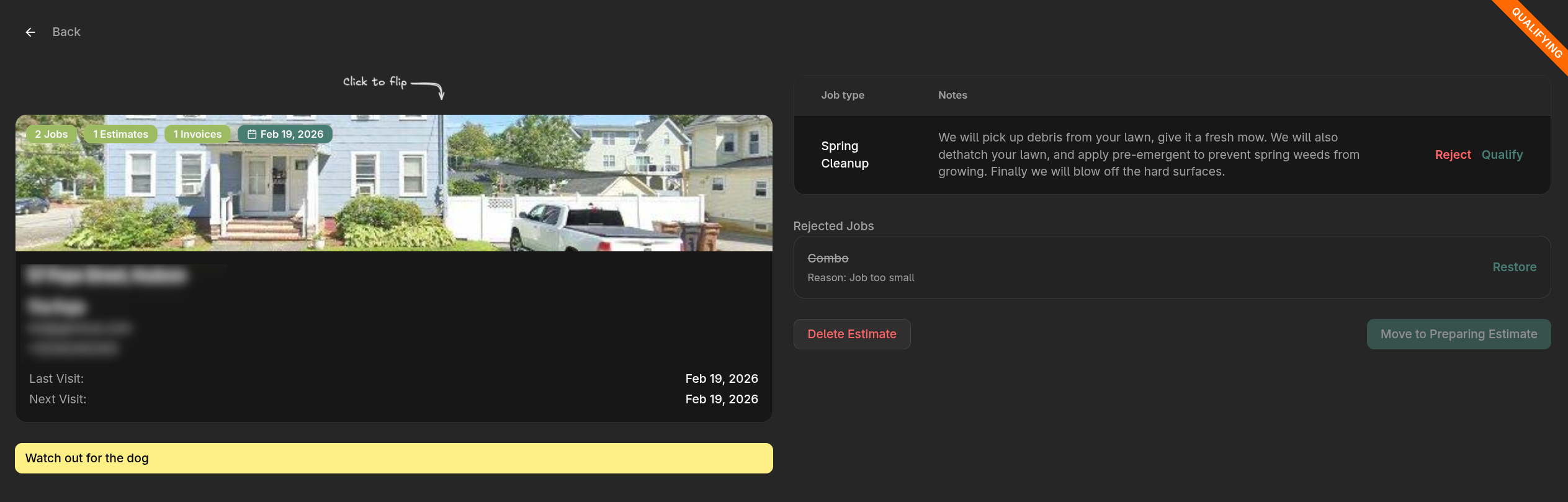
Groundskeeper allows you to qualify jobs after you've captured them, before you prepare the estimate. You might have staff that meet with leads to capture their work requests, but want to make your own decision if the jobs qualify for your services.
If you don't have a need to qualify work before estimating it, you can turn off the qualification feature in the Control Center.
Preparing the Estimate
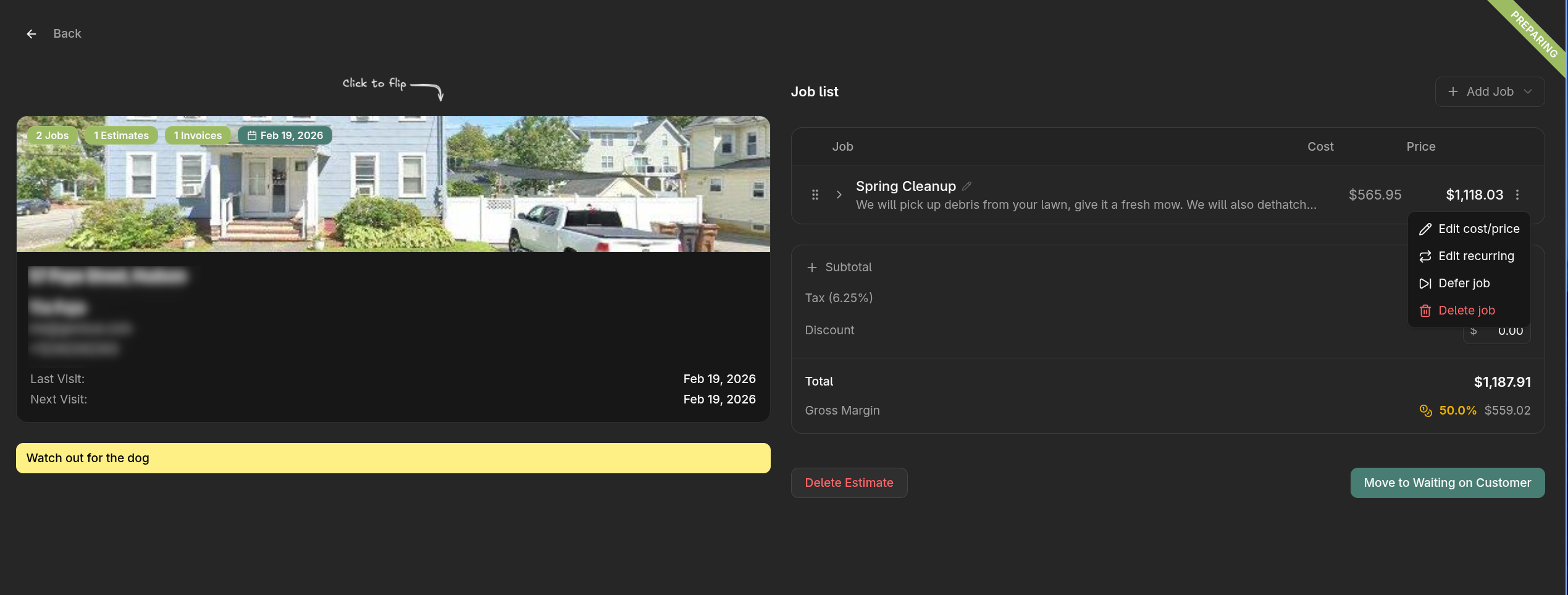
If you've set up the property and blueprints correctly, the preparation stage will be quick. Just do the following
- Check the cost and price are acceptable for the property
- Mark a job as recurring, if you're quoting for multiple visits
- Add a discount if you want
Property details incorrect
An accurate estimate is only possible with accurate property metrics. You can flip the property card over, and update the various property metrics. You'll see the estimate update as soon as you've entered a field.
Note: Don't be tempted to adjust property metrics to get to the right estimate price. Rather make the property metrics accurate to real world dimensions, and adjust the blueprint difficult to adjust the price.
Recurring jobs
Some jobs, like mowing, will be recurring jobs. Your estimate will improve the price for all the jobs, while showing the cost of a single job. You can adjust the quantity of jobs on the invoice, while the cadence applies only to the scheduling of jobs.
Deferring jobs
In some rare cases you might want to give a customer an estimate for some jobs, while taking more time to estimate another job. Maybe they want a mowing price right away, but the bigger planting job can't be estimated until the nursery prices are confirmed. In that case, you can defer the job to a future estimate so you don't forget about it.
Reviewing the Estimate
When an estimate is in review, it cannot be changed. During this stage, the property owner can review your estimate and give you feedback if needed. You can choose to email them a link from Groundskeeper, or copy the link into your own email to them. If you've uploaded your logo in the Control Center, it will appear on your estimate in the top right.
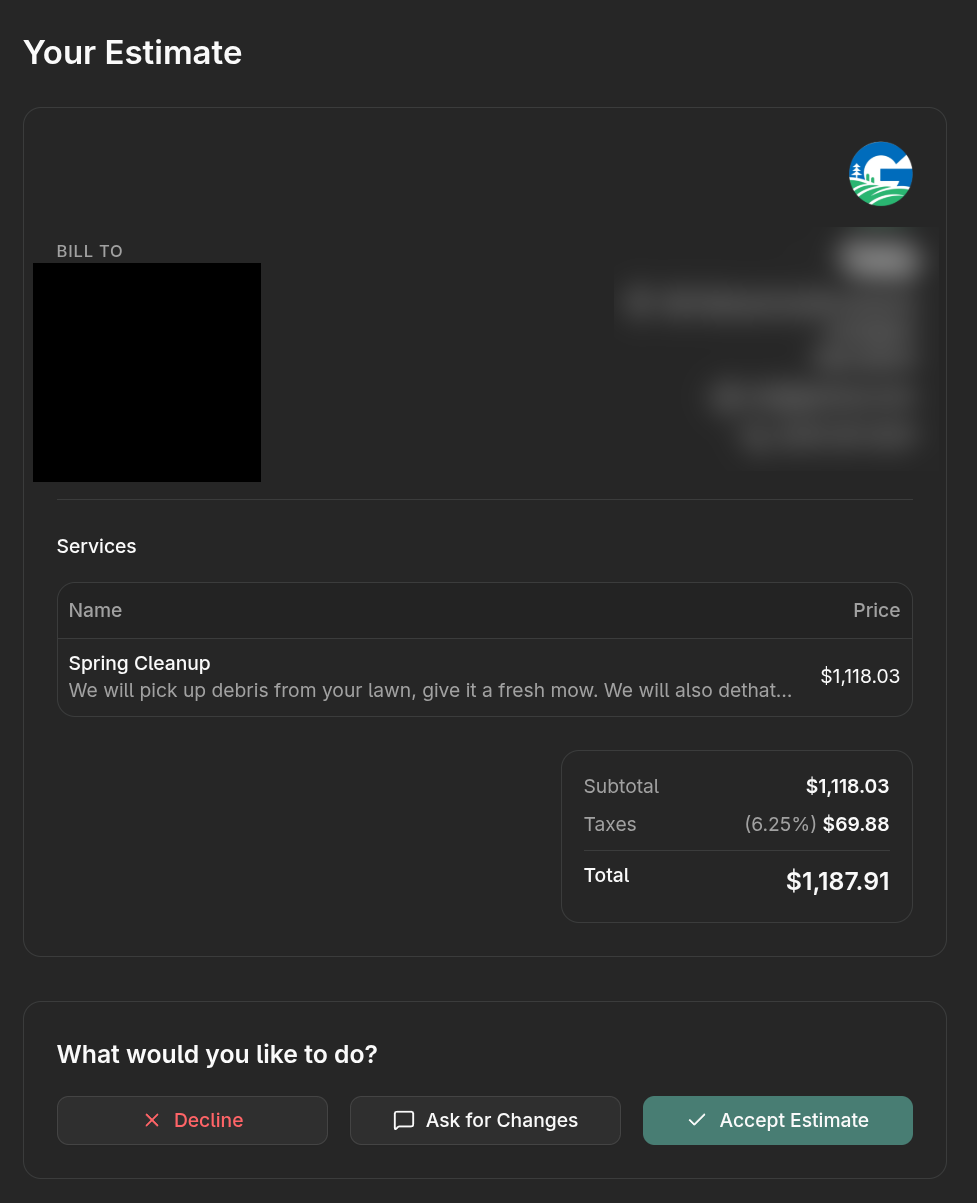
If the property owner leaves feedback, the estimate will go back into the Preparing stage, along with a note from the customer. At that point you can decide how to continue.
Accepted or rejected estimates will go into the completed column. If an estimate was accepted, all the necessary jobs will be created automatically so you can begin scheduling them at your convenience.